
Introduction
Use this guide to replace one or both of the graphics module fans in your Framework 16" laptop.
Note: the laptop used in this guide is a generic setup of one US keyboard, one numpad module, and two touchpad spacers. Your setup might vary, but the procedure should remain the same.


-
-
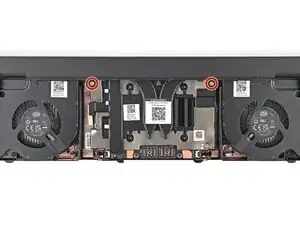
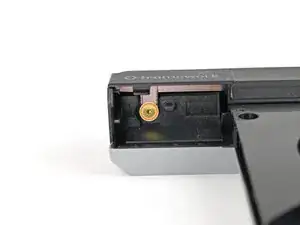
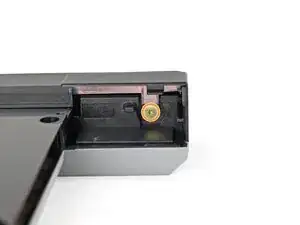
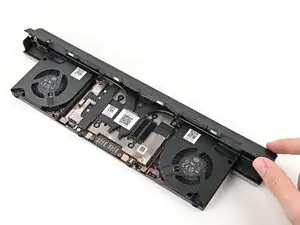
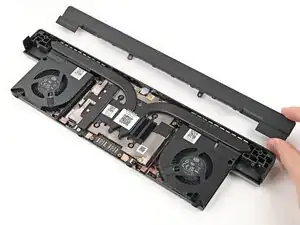
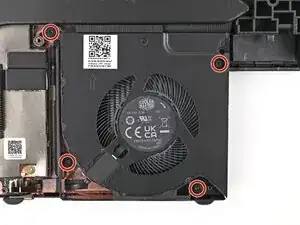
Use your Framework Screwdriver to remove the four 3.6 mm‑long T5 Torx screws securing the Graphics Module cover:
-
Two screws on the flat surface of the module, next to the fans.
-
Two screws on the thin edge of the module, near the ends. You'll need to flip the module on its back edge to access them.
-
-
-
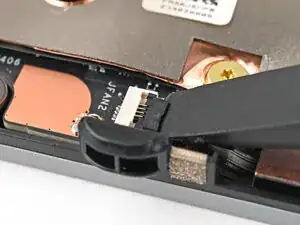
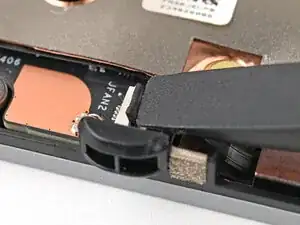
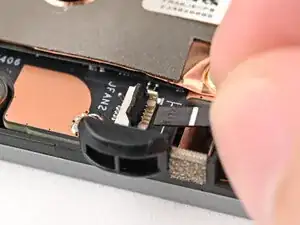
Use the flat end of a spudger, or a clean fingernail, to lift up and release the locking tab on the fan ZIF connector.
-
Use your fingers to grip the brown pull tab and slide the fan cable straight out of its socket.
-
-
-
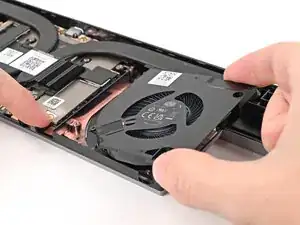
Use one hand to press the fan cable flat to the module.
-
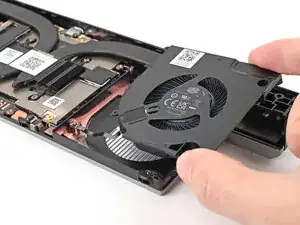
Use your other hand to pull the fan out of its housing, making sure to thread the cable though its slot.
-
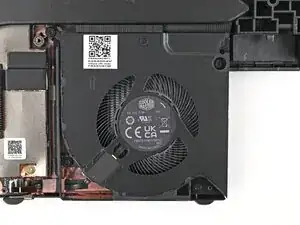
Remove the fan.
-
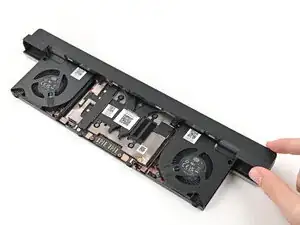

To reassemble your device, follow these instructions in reverse order.
Take your e-waste to an R2 or e-Stewards certified recycler.
Repair didn’t go as planned? Try some basic troubleshooting, or ask our Answers Community for help.
