Introduction

Follow this guide to replace a broken, cracked, or non‑responsive screen on an iPhone 17 Pro.

After replacement, True Tone and auto-brightness may be disabled until you calibrate the screen with Apple’s Repair Assistant. Non-genuine screens may not get True Tone and auto‑brightness functionality back.

Note: You'll need replacement screen adhesive to complete this repair.

  1. JwaVsGuyCnhMXAug
    JwaVsGuyCnhMXAug
    K6oUyZ5JWwfDsMmM
    • Let your iPhone's battery drain below 25% before starting this repair—a charged lithium‑ion battery may catch fire if damaged.

    • Unplug all cables from your phone.

    • Hold the power and either volume button and slide to power off your phone.

  2. rQ2ZIKd6CLEgOpZM
    rQ2ZIKd6CLEgOpZM
    M31LuSxc2V4TKLZU
    nqYtVUKd3E5pDqPP
    • Glass shards can complicate disassembly—or worse, cause injury. If your phone is cracked, follow this step.

    • Apply strips of packing tape to the cracked glass until it's completely covered—this will help keep the glass contained and allow the suction cup to stick.

    • Make sure there's a single strip of tape (not overlapping) across the bottom edge, big enough for a suction cup to fit on.

    • Only cover the glass itself—don't stick any tape to the frame.

    • Consider wearing safety glasses to protect your eyes from any glass shaken free during the repair.

  3. rfjGySSoZXYHqFV4
    rfjGySSoZXYHqFV4
    TLfGlEY34P4LaLWe
    • Use a P2 pentalobe screwdriver to remove the two 7.5 mm‑long screws on either side of the charging port.

  4. mNYMR3KqsJjrNUlm
    mNYMR3KqsJjrNUlm
    YQjBm6Jve2xfBSih
    TnvYXuXJNKjWdW3M
    • If inserted too far, an opening pick can damage your device. Follow this step to mark your pick and prevent damage.

    • Measure 3 mm from the tip and mark the opening pick with a permanent marker.

    • Alternatively, you can tape a coin 3 mm from the tip of the pick.

  5. MXDXXifvaJJQ4Fhn
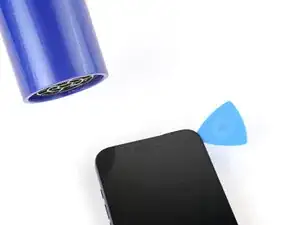
    • Use a hair dryer or heat gun to heat the bottom edge of the screen until it's slightly too hot to touch.

    • Improper use of a heat gun can destroy the display and/or battery—follow the linked instructions carefully.

  6. UKT2BPBbZa12mGKP
    UKT2BPBbZa12mGKP
    evOQmF6cF2STB5VR
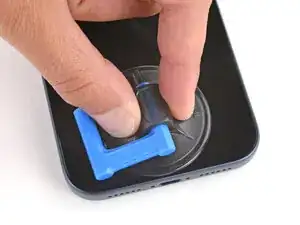
    • Apply a suction handle to the bottom edge of the screen, as close to the edge as possible.

  7. oo6HJYt5egfpBgji
    oo6HJYt5egfpBgji
    YPoNsnZLci12OADj
    vk2SuAmK3xAReXQy
    • During the next step, make sure you're inserting your pick in the correct location:

    • There's a plastic bezel on the underside of the screen that sits on the frame. Insert your pick here, making sure it's completely under the bezel.

    • There's a seam between the plastic bezel and the display panel. Don't insert your pick here or you'll separate the two, complicating the repair.

  8. nljlvVD3VTcVUGmu
    nljlvVD3VTcVUGmu
    EQEVUhGWtCpCKl2B
    4RALpw2ftsTh4vwn
    • Pull up on the suction handle with strong, steady force until a gap forms between the screen and frame.

    • This may take significant force. If you're having trouble, reheat the screen and try again.

    • Insert the tip of an opening pick in the gap you just created.

  9. QwIHeMEr2mesBDpM
    QwIHeMEr2mesBDpM
    MwXNVx1RLEQDL35m
    1yLkULOF13IZlNnD
    • Don't insert your pick more than 3 mm under the screen to avoid damaging the following components:

    • The screen and ambient light sensor cables are located near the volume and Action buttons.

    • There are delicate spring contacts around the perimeter of the phone.

    • The underside of the screen has thin, metal clips that go into corresponding slots on the frame.

  10. tlZdpBqbRebNnOI2
    tlZdpBqbRebNnOI2
    P2Ylvcp4vF2c5VA6
    x5cAaE3eCpSEMdAA
    • Slide the opening pick along the bottom edge to separate the adhesive.

    • Leave the pick inserted under the bottom right corner to prevent the adhesive from re‑sealing.

  11. EwED5TwVoQyRWGPg
    • Pull the small nub on the suction cup to remove it from the screen.

  12. UHJxB2FHlRMONjGk
    UHJxB2FHlRMONjGk
    wIX2BGpFLi2mJxAT
    aI2JoObSD5xIA4ZD
    • Use a hair dryer or heat gun to heat the right edge of the screen.

  13. hwqsdqTKTelKx3K5
    hwqsdqTKTelKx3K5
    WpOrMuYvFnIEWsGt
    HIVt6yHFRWq4xeUH
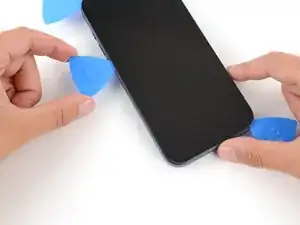
    • Insert a second opening pick under the bottom right corner of the screen.

    • Slide the pick up the right edge to separate the adhesive and release the two clips.

    • You may need to pry the screen up slightly to release the clips

    • Leave the pick inserted under the top right corner to prevent the adhesive from re‑sealing.

  14. 3tYDQ1KCpDG3Ikg6
    3tYDQ1KCpDG3Ikg6
    Q6cb5KPSScX2mCum
    • Use a hair dryer or heat gun to heat the top edge of the screen.

  15. cix2goYk5lmZYmrw
    cix2goYk5lmZYmrw
    ZZXg31IKns5YmI6t
    DqLATqSpvdAMXTWB
    • Insert a third opening pick under the top right corner of the screen.

    • Slide the pick along the top edge and just barely around the top left corner to separate the adhesive and release the two clips.

    • Don't slide the pick farther, or you may damage the ambient light sensor cable.

    • Leave the pick inserted under the top left corner to prevent the adhesive from re‑sealing.

  16. TlbSrb1ySUetM4CC
    TlbSrb1ySUetM4CC
    gHO3oKN6x1ye1Nfu
    Y4wBWtaeMYr3yN6g
    • Use a hair dryer or heat gun to heat the left edge of the screen.

  17. reF3evcTgF1rNNnY
    reF3evcTgF1rNNnY
    AMnEUWDpYvyMcgTh
    FwlKdB51CBMOecOd
    • Insert a fourth opening pick under the bottom left corner of the screen.

    • Slide the pick up the right edge to separate the adhesive and release the clip, stopping just before the volume up button.

    • You may need to pry up the screen slightly to release the clip.

    • Don't slide the pick farther, or you may damage the screen cable.

  18. Hg6tWPANmJSvgTdo
    Hg6tWPANmJSvgTdo
    LVWCLPcB4OTPFMLu
    • At this point, the screen should be completely detached from the frame. If it feels stuck, go back around the perimeter and separate any remaining adhesive or clips.

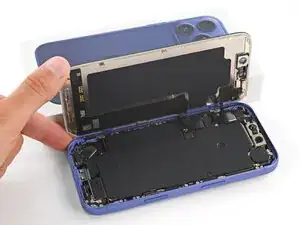
    • Lift the screen straight up and swing it over the left edge, propping it up against a sturdy box or stack of books so the cables aren't strained.

    • Alternatively, you can lay the screen down flat over the left side.

  19. TPVhVaecgkWQfpQG
    • Throughout this repair, keep track of each screw and make sure it goes back exactly where it came from.

    • Use a JIS 00 screwdriver to remove the two screws securing the cable covers:

    • One 1.4 mm‑long screw for the screen and front sensor cable cover

    • One 1.3 mm‑long screw for the battery cover

    • Small iFixit Phillips bits are designed to work with JIS screws. You can try Phillips drivers from other manufacturers, but you risk stripping the screw.

  20. 4uEtceRuA6Un2T2o
    4uEtceRuA6Un2T2o
    rVoxRNBAwCVr4rfJ
    gMcYGqSUJSbBhXsc
    • Remove the two covers.

  21. BDw1OKTAl1OcSPrU
    BDw1OKTAl1OcSPrU
    hBOUffZB15HH2XPY
    • Use the point of a spudger to pry up and disconnect the battery press connector.

  22. 3vFFIWJACatLnkGc
    3vFFIWJACatLnkGc
    WYIGEA1GfXTCGRCe
    PLJBbSYKBUNODKSq
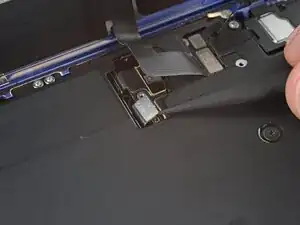
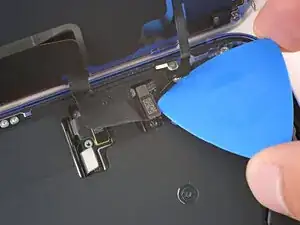
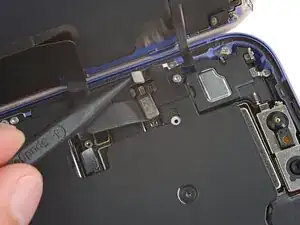
    • Use the tip of an opening pick or the point of a spudger to pry up and disconnect the screen and ambient light sensor press connectors.

  23. bkE1gufsrVPbmdLB
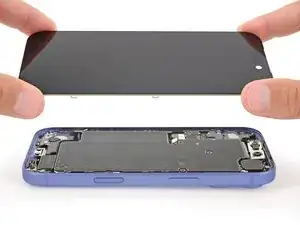
    • Remove the screen.

    • During reassembly, follow this guide to apply adhesive and install your screen.

    • Be careful not to damage any of the spring contacts as you clean the frame.

  24. Lj2lruBhEiFMAoFp
    Lj2lruBhEiFMAoFp
    TPlh2RFghSbhXINq
    • If your replacement screen doesn't have front sensors installed, follow the next six steps to remove and transfer them.

    • Use a tri‑point Y000 screwdriver to remove the two 1.0 mm‑long front sensors screws.

  25. 1U2S4O2lxtsOehm4
    1U2S4O2lxtsOehm4
    TvaTNFhHYHXcAOaS
    • Remove the front sensors bracket.

  26. qBOEWZt44NrCrevn
    • Use a hair dryer or heat gun to heat the front sensors.

    • You can heat the sensor directly, or heat its corresponding spot on the front of the screen.

  27. yDeOGeaJblwngpio
    yDeOGeaJblwngpio
    kHxxOXByYWhGWIbi
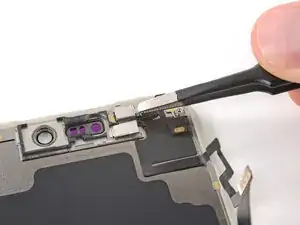
    VCWPGnGdWxISD5Tw
    • The front sensors are very fragile and can easily rip—be very gentle while removing them. If you're having trouble, apply more heat and try again.

    • Use the point of a spudger to pry up both front sensors.

    • Pry on the tab under the sensors—not the sensors themselves—or you may damage them.

  28. IHlOviBaFnDXRomA
    IHlOviBaFnDXRomA
    PsTVAFJgIqOqibRJ
    cvASoUKGGhBFgBN1
    • Insert the tip of an opening pick under the top right corner of the front sensors large, glued down cable.

    • Slowly slide the pick under the cable and lift until you can grip it with your fingers.

    • Use your fingers to peel up the cable and remove the sensors.

    • You can now transfer the sensors to your replacement screen.

Conclusion

To reassemble your device, follow these instructions in reverse order.

After your repair, calibrate a genuine replacement screen using Apple's Repair Assistant. Navigate to Settings General About Parts & Service History, tap Restart & Finish Repair, and follow the onscreen prompts.

Take your e-waste to an R2 or e-Stewards certified recycler.

Repair didn’t go as planned? Try some basic troubleshooting, or ask our Answers Community for help.

Spencer Day

Member since: 14/09/22

155063 Reputation

0 comments